The Content Optimizer (formerly AI Search Optimizer) helps you improve your content for both traditional SEO and AI search visibility.
It analyzes your text, identifies opportunities for improvement, and provides actionable recommendations to help your articles perform better in traditional search engines like Google and modern AI-powered platforms like ChatGPT.
What Is the Content Optimizer?
The Content Optimizer is part of the Semrush Content Toolkit. It allows you to optimize any text (whether you created it inside the Toolkit or imported it from another source) based on data-driven SEO metrics and AI search factors.
You can:
- Check keyword coverage, readability, and tone of voice
- Receive AI-generated suggestions for structure, clarity, and balance
- Optimize for both Google and AI search engines
- Export, publish, or share your improved content directly
Why Use the Content Optimizer
The tool helps you:
- Create content that performs across both SEO and AI search
- Improve readability, structure, and engagement
- Detect missing elements that reduce visibility in search and AI summaries
- Save time with instant AI-powered rewrite and correction tools
- Publish directly to connected platforms such as WordPress
How to Use the Content Optimizer
You can access the Content Optimizer from the Content Dashboard or the main navigation inside the Semrush Content Toolkit.
Step 1. Open your Content in the Optimizer
- On the Content Dashboard, click Optimize existing article.
- Choose how you want to import your content:
- Paste text: Insert any text manually.
- Enter URL: Enter the web address of the page you’d like to analyze.
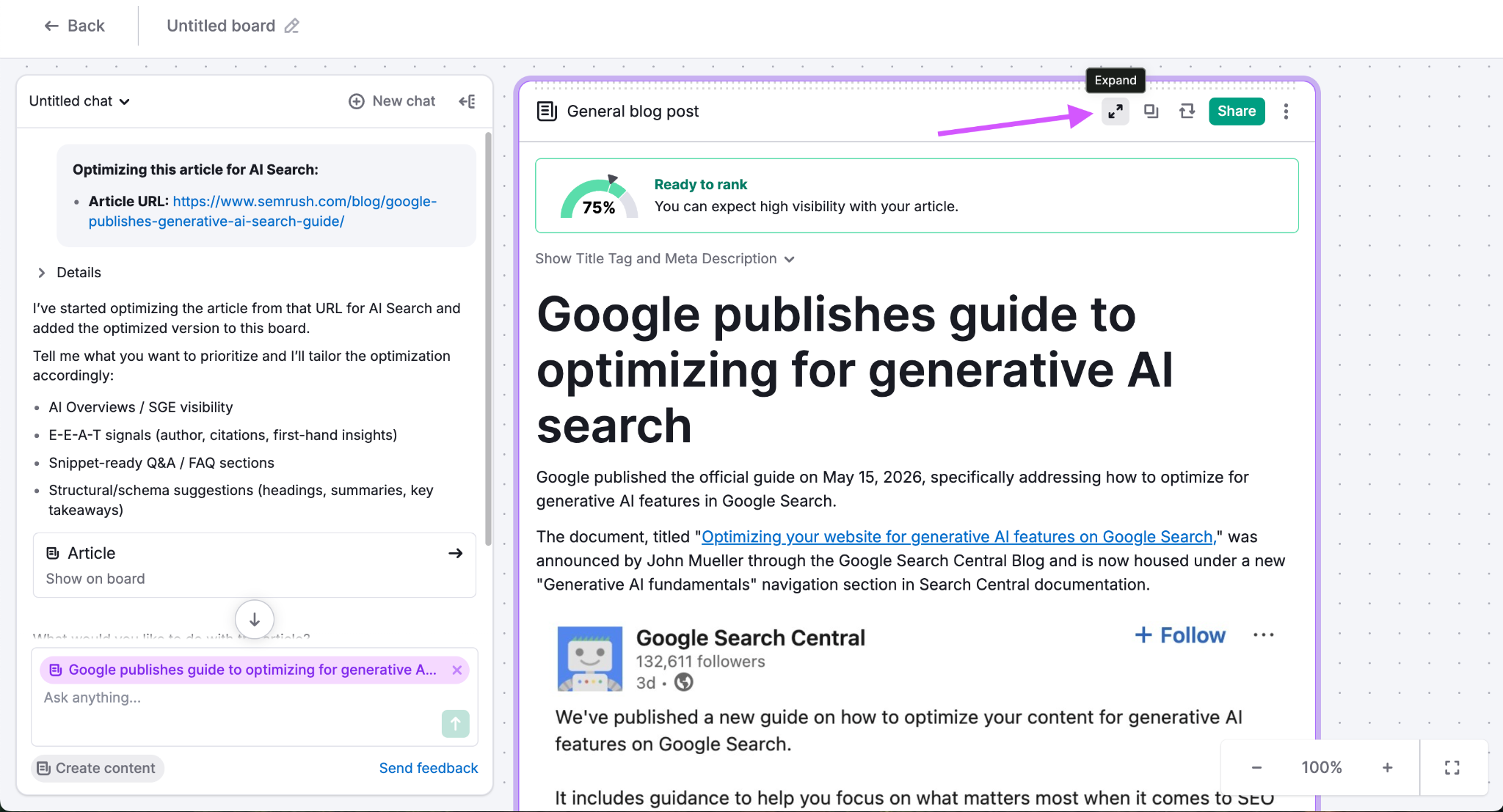
The chosen content opens in the chat and board interface, where you can follow the guided optimization process.

Click the Expand button in the upper-right corner of the text window to enter Focus Mode, which opens the editor interface with the Content Optimizer panel on the right-hand side.
Step 2. Define Your Optimization Targets
Click Edit target in the upper-right corner of the Content Optimizer panel to specify the focus of the optimization.
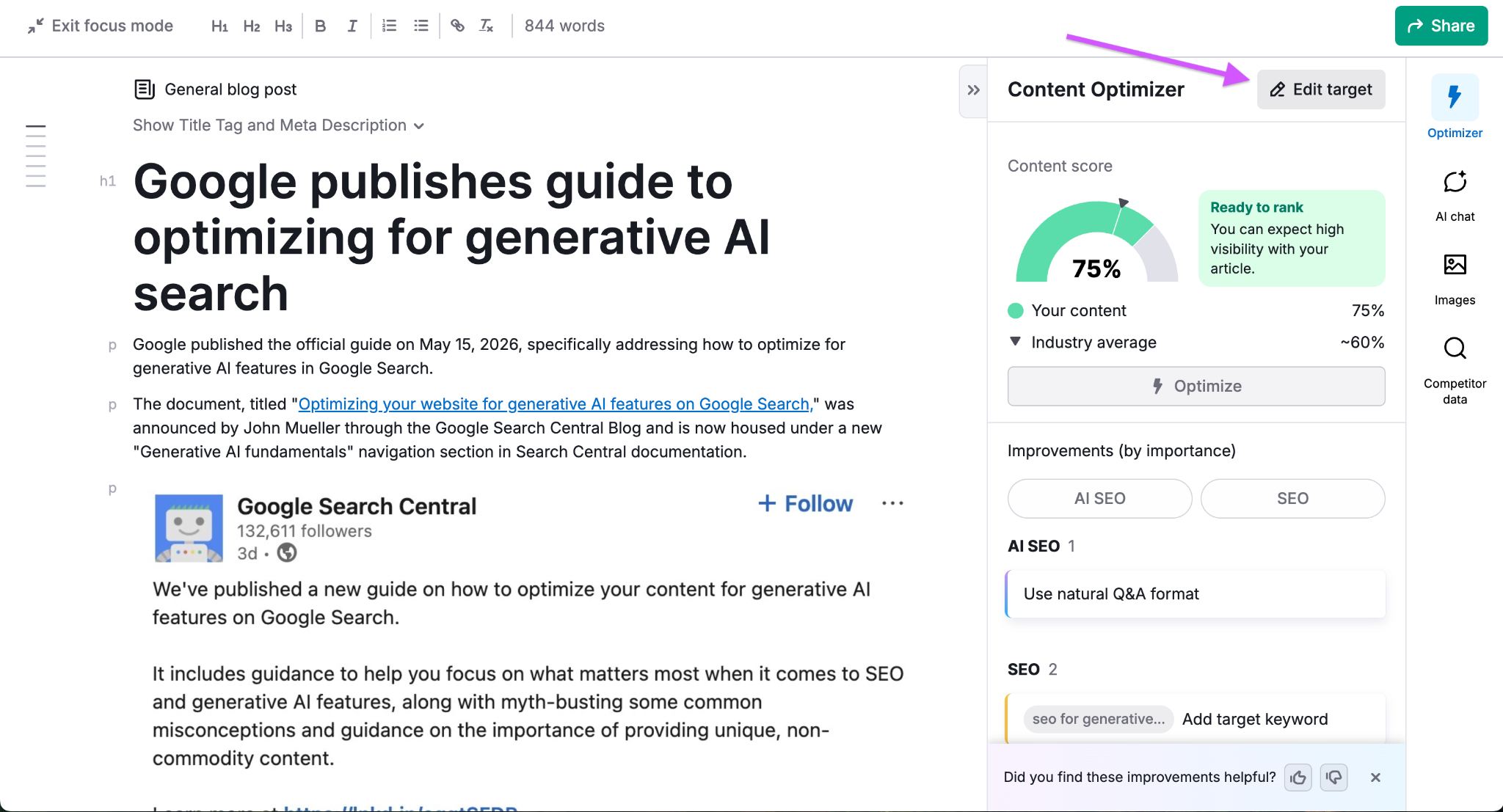
Here you can set:
- Audience location: The target market or country you are writing for.
- Target keywords: Add up to 30 target keywords you want to rank for.
- Tone of voice: Choose from predefined tones like Neutral, Casual, or Formal.
- Word Count: Adjust the recommended length range for your article.
- Readability level: Set your preferred difficulty level.
These parameters allow the tool to tailor its metrics and scoring to your specific goals.
Step 3. Review the Content Score and Suggestions
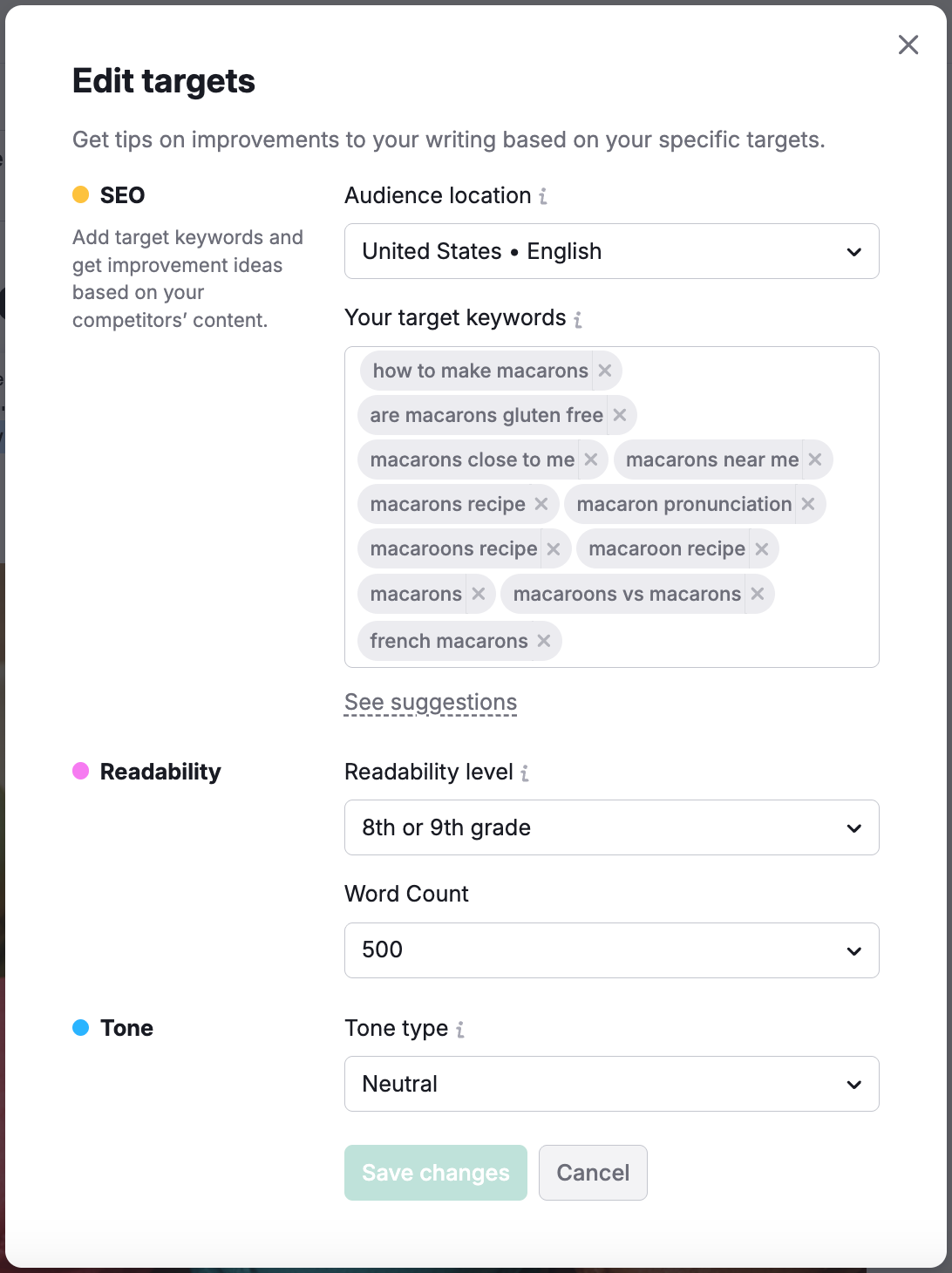
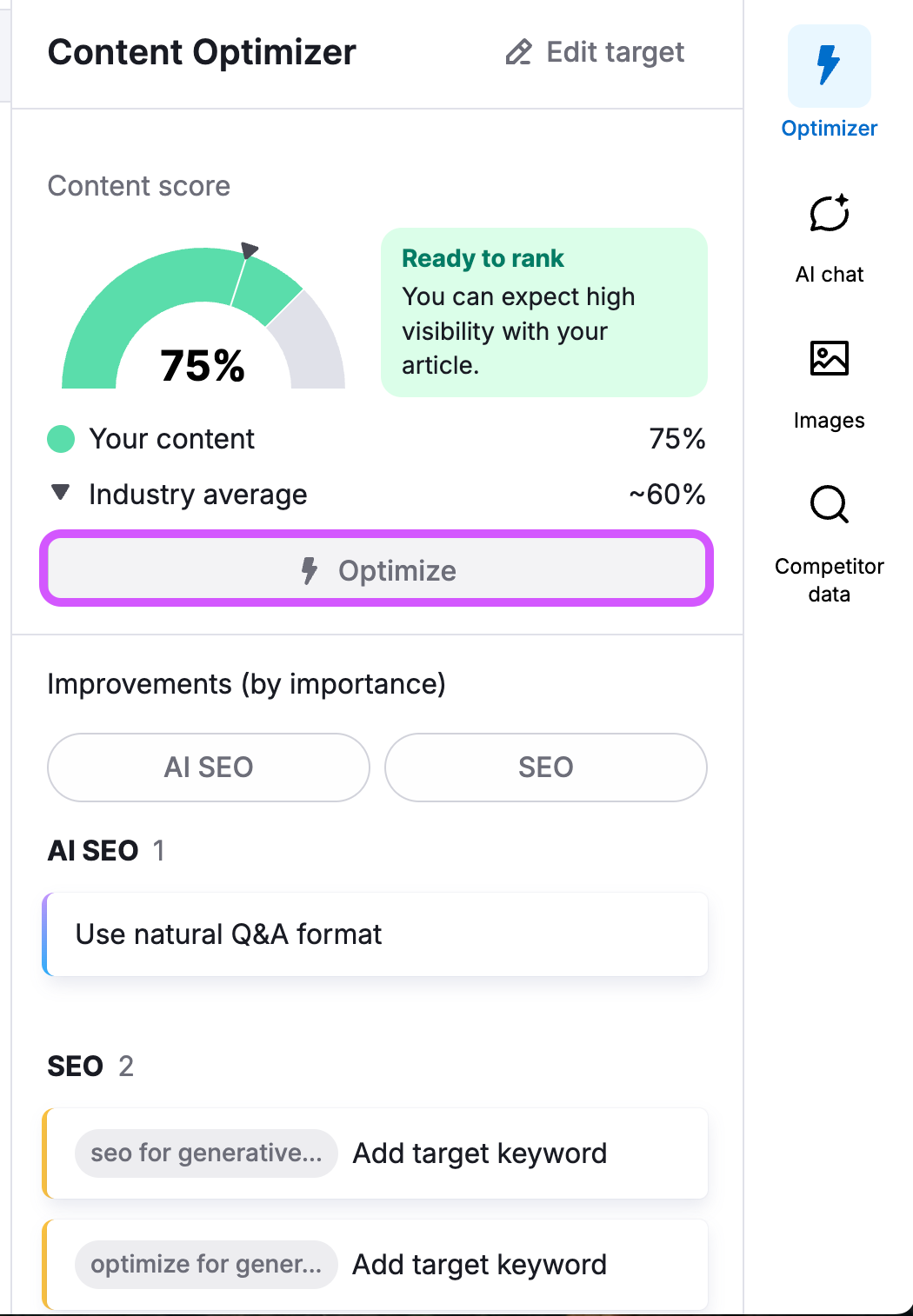
The tool combines your metrics into a single Content Score that factors in both organic SEO and AI visibility. Aim for a high score — this indicates that your article is clear, comprehensive, and easily interpreted by LLMs.
Note: To keep you in control of your editing process, the Content Score is calculated on demand. It will not run automatically on every minor edit. Click the score area to refresh it whenever you are ready.
Below the score, your optimization improvements are displayed in a unified list, grouped into two primary sections:
- AI SEO: Focuses on structural and semantic criteria to ensure your article is easily surfaced by large language models (LLMs) like ChatGPT and Perplexity. This includes authorship credentials, natural Q&A formatting, and structural summaries.
- SEO: Provides actionable recommendations for search engines like Google. This covers title tags, target keywords, keyword stuffing, meta descriptions, readability, and image alt attributes.
Step 4. Apply Improvements
You can address improvements across both dimensions at once:
- Click the Optimize button at the top of the optimization panel.
- The AI will automatically rewrite the article to fix detected issues across both SEO metrics (title, target keywords, keyword stuffing) and AI SEO signals.
- Alternatively, you can highlight individual sections in the text editor to open the AI quick commands toolbar (Rephrase, Simplify, Expand, Summarize, Make list) to tweak specific sentences manually.
Step 5. Review Changes Before You Apply
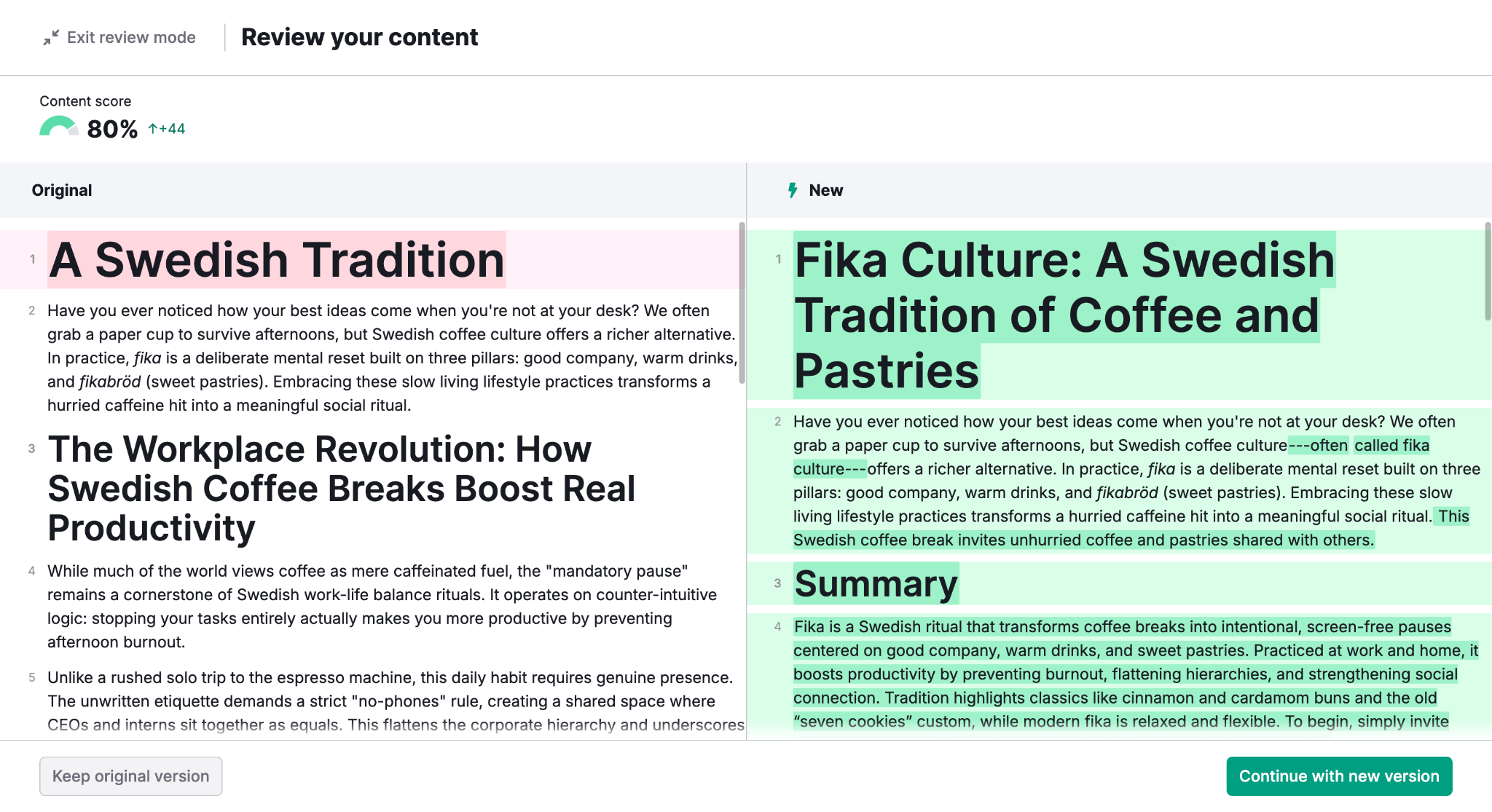
Once the optimization is complete, a new side-by-side diff modal will automatically pop up:
- Compare versions: View your original text side by side with the newly optimized version.
- See the score change: Review how your unified Content Score improves with the new changes.
- Decide: Click to accept and apply the new version, or reject the changes to keep your original draft.
Step 6. Generate Metadata and Visuals
Use the AI-powered tools in the right-hand panel to automatically create and refine the supporting elements that enhance your article's performance, readability, and visual appeal.
AI Chat
The AI Chat tab helps you improve and expand your content with a variety of text-generation tools. From this panel, you can:
- Generate Title Suggestions – Create engaging, click-worthy title tags optimized for search visibility and reader engagement.
- Draft a New Introduction Paragraph – Instantly generate compelling opening paragraphs that capture attention and set the stage for your content.
- Create a New Structure – Reorganize your article into a clearer, more logical flow with AI-generated section outlines and content frameworks.
- Generate Code Examples – Create relevant code snippets, structured data markup (such as schema.org), custom scripts, or other technical examples that can be embedded directly into your content.
Simply enter a prompt in the chat window, and the AI will generate suggestions tailored to your article.
Images
Switch to the Images tab to enhance your content with custom visuals and supporting assets. This workspace allows you to create or insert commercially usable media directly into your article.
Available options include:
- AI Images – Generate unique, watermark-free, royalty-free graphics tailored to your content.
- Diagrams – Create visual charts and illustrations that simplify complex concepts, processes, and workflows.
- Schemas – Build structural layouts, technical blueprints, and visual content frameworks to support technical documentation and planning.
You can also access additional visual resources through integrated third-party services:
- Canva – Design and customize professional graphics using Canva's built-in tools.
- Unsplash – Browse and insert high-quality stock photography directly from the Unsplash library.
These tools make it easy to create both the metadata and visual assets needed to publish polished, engaging, and search-friendly content.
Step 7. Export or Publish Your Optimized Content
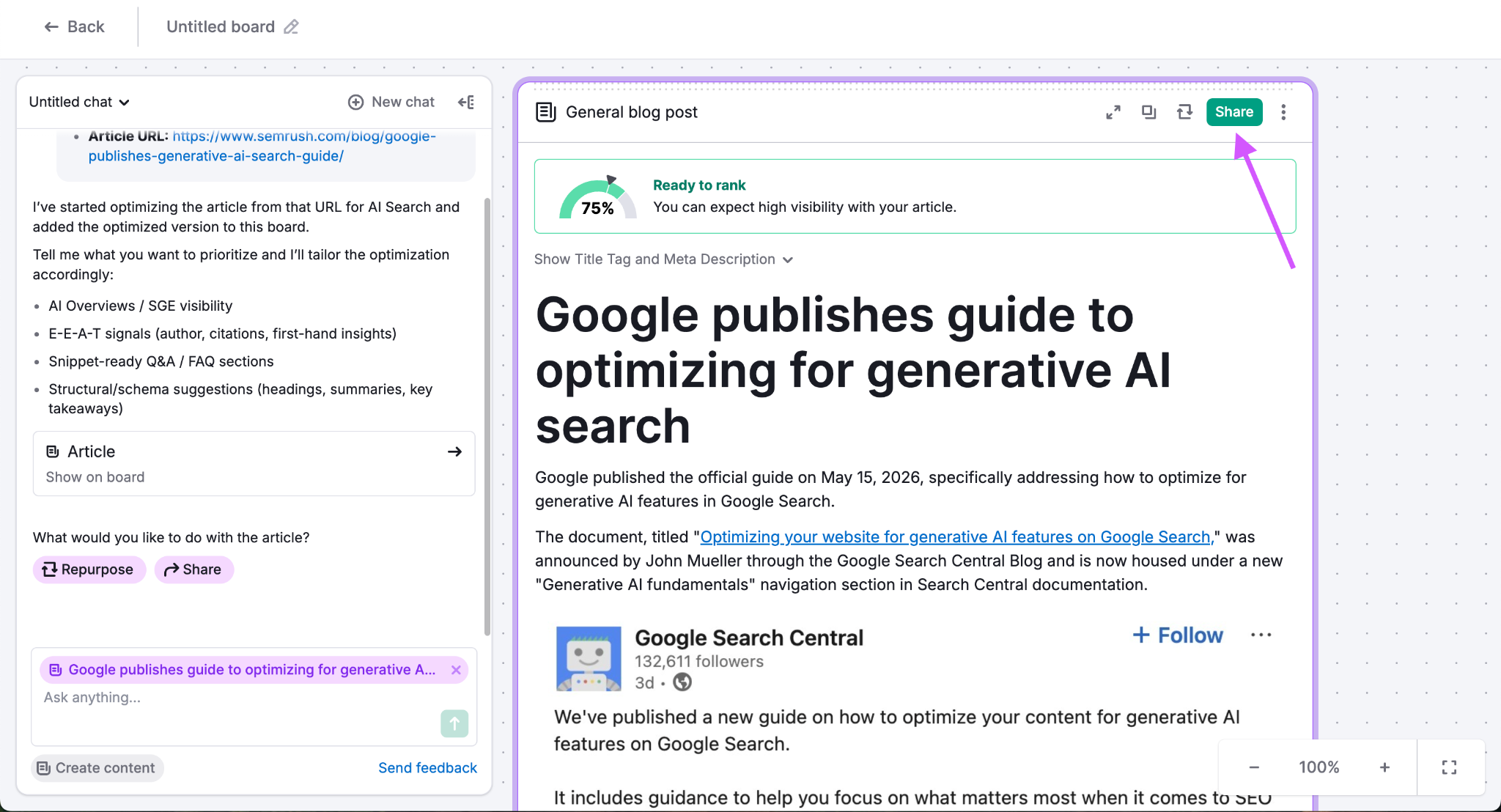
All applied changes save automatically. Once your optimization is complete, click Publish or Share to choose from your export options:
- Publish to WordPress: Connect your site and publish instantly.
- Export to Google Docs: Continue collaborating outside the Toolkit.
- Share with read-only access: Generate a link to collect feedback from external stakeholders.
Pro Tips for Comprehensive Content Optimization
- Structure for clarity: Use concise sentences and descriptive headers. Traditional search engines love structured logic, and Large Language Models (LLMs) extract information more accurately from clearly labeled sections.
- Write naturally for search intent: Focus on target keywords naturally within context. Avoid keyword stuffing, and instead frame key topics in a natural Q&A format or include explicit definitions to increase the likelihood of being summarized or quoted by AI platforms like ChatGPT.
- Demonstrate credibility and trust: Include clear sources, data points, and internal links to relevant pages on your site. Both traditional search algorithms and AI engines heavily favor content that displays deep evidence and authorship credentials.
- Maintain optimization schedules: Search and AI discovery models evolve quickly. Review your readability, keyword balance, and semantic clarity by re-running the optimizer every few months to keep your overall score high.
Frequently Asked Questions
What’s the difference between AI Search Optimization and SEO Optimization?
AI Search Optimization improves how your content is interpreted and surfaced by AI platforms like ChatGPT and Perplexity.
SEO Optimization helps your page rank higher on traditional search engines such as Google. Both workflows complement each other.
Can I optimize content that wasn’t created inside the Content Toolkit?
Yes. You can paste your text, enter a URL, or select an imported article from My Content. The optimizer will scan and provide recommendations for both AI and SEO visibility.
Does the optimizer apply changes automatically?
Only when you click Apply fix. You can always preview suggestions or edit text manually.
Can I publish optimized content directly?
Yes. You can publish to WordPress, export to Google Docs, or share a view-only link for approvals.
How often should I re-optimize my content?
AI search and SEO algorithms change frequently. Re-run optimization periodically, especially after updating your content or adding new sections.